How to create and use Google App Passwords
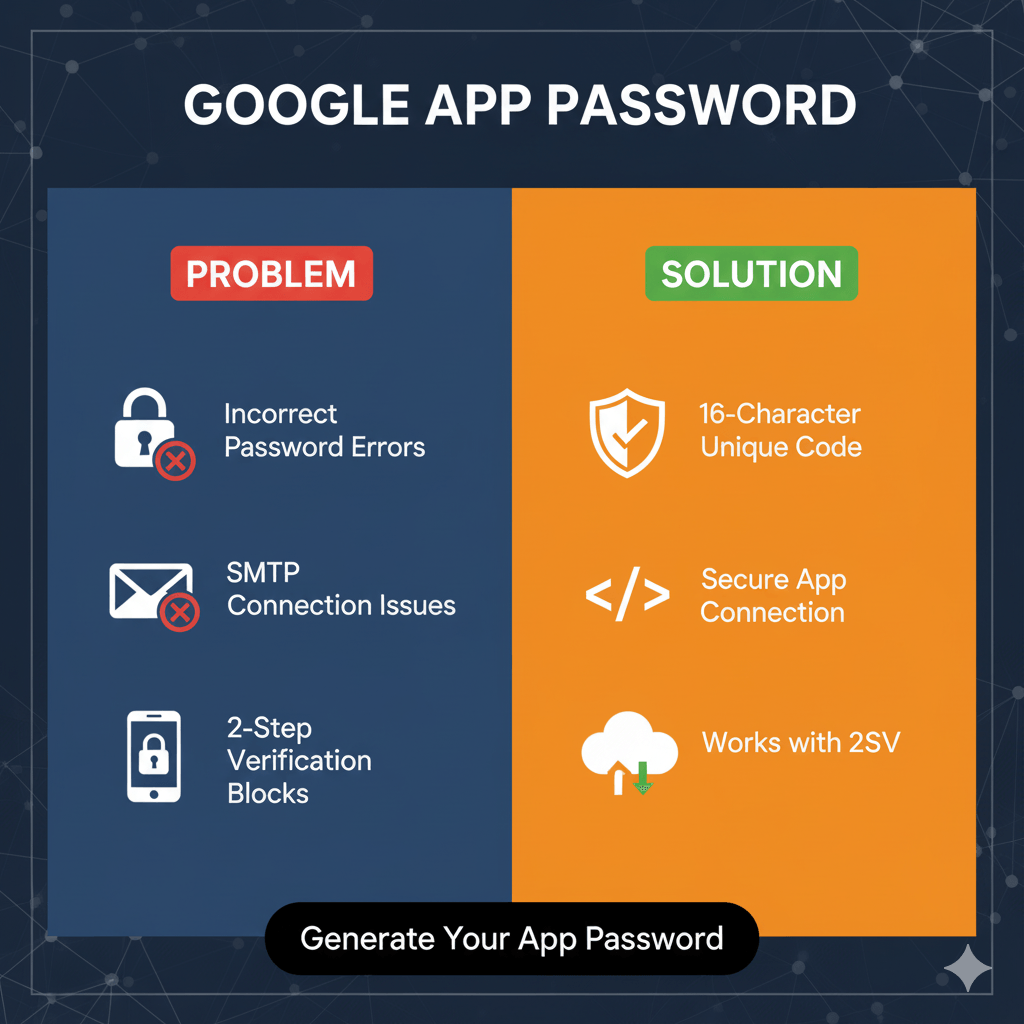
A Google App Password is a unique 16-character code that lets apps and devices connect to your Google Account when you have 2-Step Verification enabled. If you’re setting up email on taxi-webdesign.com (for example, to send booking confirmations via SMTP) and run into “incorrect password” errors, this is usually what you need.
Step 1: Enable 2-Step Verification
Before you can generate an App Password, you need to turn on 2-Step Verification.
- Sign in at myaccount.google.com.
- Click Security in the left menu.
- Under “Signing in to Google”, select 2-Step Verification.
- Click Get started and follow the prompts to set it up (using your phone, authenticator app, or text message).
Once this is active, you’re ready to create App Passwords.
Step 2: Generate an App Password
- Go back to myaccount.google.com.
- Under Security, scroll down to App Passwords.
- Enter your Google password again if prompted.
- From the drop-down, choose the app you need (e.g. Mail) and the device (e.g. Other – give it a name like “SMTP”).
- Click Generate.
Google will show you a 16-character code. Copy it — you’ll need to paste it into your Dashboard settings.
Step 3: Use the App Password in Your Dashboard Settings
When you’re setting up email for booking confirmations or notifications:
- Use your full Google Workspace or Gmail address as the username.
- Paste the 16-character App Password where it asks for your email password.
- Make sure SSL/TLS is enabled (usually port 465 or 587).
Once saved, emails should start sending without authentication errors.
Step 4: Manage or Revoke App Passwords
- You can remove any App Password from the App Passwords page to cut off access from a device or app.
Common Issues
- App Password option not visible → You haven’t turned on 2-Step Verification.
- Still getting errors → Double-check SSL/TLS and SMTP port settings.
- Multiple accounts → Make sure you’re logged into the correct Google Account when generating the password.
Need Help?
If you’d like step-by-step assistance, reach out to our support team at [email protected] We’ll walk you through enabling App Passwords and configuring your email.